


Learn how to build a Shopify product comparison chart in 5 simple steps. Enhance customer experience, drive sales, and boost conversions with easy-to-use charts.
A product comparison chart is a powerful tool for e-commerce businesses. It allows customers to compare different products side by side, helping them make informed purchasing decisions. On Shopify, you can create a product comparison chart to showcase the key features, pricing, and specifications of your products. This makes shopping easier for your customers and can boost your conversion rates.
In this article, we will guide you through 5 simple steps to build a product comparison chart for your Shopify store. By following these steps, you can improve the shopping experience and drive more sales.
Why You Need a Product Comparison Chart
Before diving into the steps, let’s quickly understand why you should add a product comparison chart to your Shopify store:
- Informed Decision Making: Customers can quickly compare key features of products, which helps them decide what best fits their needs.
- Enhanced Shopping Experience: A comparison chart makes the shopping experience smoother by organizing product details in one place.
- Increased Conversion Rate: By providing a clear comparison, you’re more likely to convert visitors into paying customers.
- Reduced Returns: When customers are well-informed about a product’s features and specifications, they’re less likely to be dissatisfied after purchase.
Now, let’s get started with the steps to create a product comparison chart on Shopify!
Step 1: Choose the Right Product Comparison Tool
Shopify doesn’t have a built-in product comparison chart feature, so you’ll need to use a third-party app or manually add a comparison chart. Here are a few options:
- Third-Party Apps: Shopify has several apps that make adding a product comparison chart easy. Some popular options include “Compare It!” and “Product Compare”. These apps are user-friendly and allow you to create comparison charts without any coding.
- Custom Code: If you prefer to create a product comparison chart without using an app, you can add custom HTML and CSS to your Shopify theme. This requires a bit of coding knowledge but gives you more control over the design.
For beginners, we recommend using a third-party app as it simplifies the process. These apps often come with pre-built templates, making it easy to integrate the comparison chart into your store.
Step 2: Select the Products for Comparison
Once you’ve chosen your tool, the next step is to decide which products you want to compare. Product comparison charts work best when comparing similar products that have different features, such as:
- Clothing: Compare different shirts, pants, or dresses based on size, material, color, and price.
- Electronics: Compare smartphones, laptops, or cameras based on specifications like screen size, storage capacity, battery life, and price.
- Home Goods: Compare products like furniture or kitchen appliances based on features like dimensions, material, and cost.
Choose at least 3-5 products to compare at a time, ensuring that they are closely related so that customers can make meaningful comparisons.
Step 3: Define the Key Comparison Features
For your comparison chart to be useful, it’s important to highlight the right features. Think about the aspects of your products that customers care about most. These could include:
- Price: Display the price for each product, which is often the most important factor in a customer’s decision.
- Product Specifications: Show product details like size, color options, weight, or capacity.
- Material: If your products have varying materials (e.g., cotton vs. polyester), include this in the comparison.
- Customer Ratings: Show average ratings from customers for each product to help build trust.
- Features: List features like waterproofing, wireless connectivity, or special functionalities.
- Warranty: If applicable, include information on product warranties or guarantees.
When designing the chart, avoid overwhelming customers with too many options. Focus on the features that are most relevant to your target audience.
Step 4: Design the Comparison Chart Layout
The design of your comparison chart is crucial for user experience. It should be easy to read and navigate. Here are some design tips to keep in mind:
- Simple and Clean Layout: Your chart should be easy to scan at a glance. Use clear headers for each product feature and ensure that the text is large enough to read on both desktop and mobile.
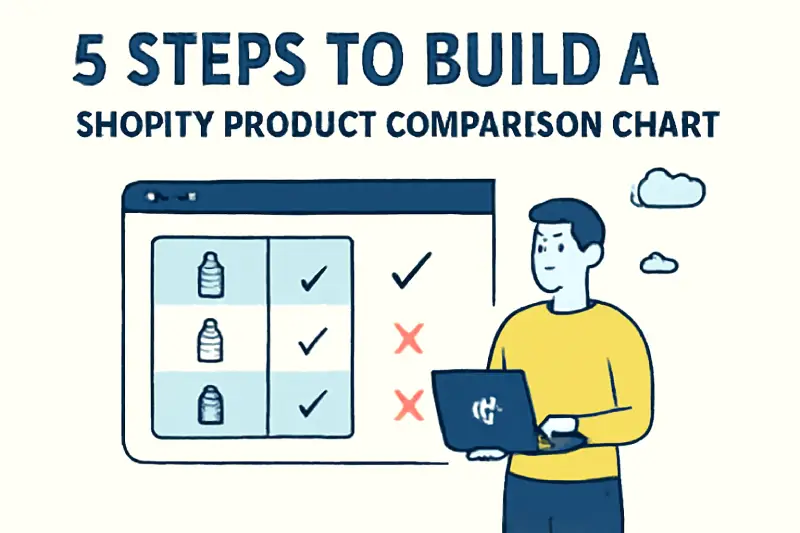
- Use Checkmarks and Icons: For features that are present or available in a product, use checkmarks or icons. For features that aren’t available, use a cross or a different color to make it clear.
- Highlight Differences: Make sure the differences between products are easy to spot. You can use bold text, color coding, or shading to highlight these differences.
- Responsive Design: Your comparison chart should be mobile-friendly. Most customers will likely view your store on their smartphones, so ensure the chart adjusts well to smaller screens.
If you’re using a third-party app, the design will usually be handled for you. But if you’re adding custom code, you may want to use a simple grid layout with alternating colors for easy readability.
Step 5: Add the Product Comparison Chart to Your Shopify Store
Once you’ve created your product comparison chart, the final step is to integrate it into your Shopify store. There are a few places where you can add the comparison chart:
- Product Pages: Add the chart directly below or beside the product details on your product pages. This way, customers can easily compare products while shopping.
- Category Pages: You can also display the comparison chart on category pages that feature multiple products in the same category (e.g., “Smartphones” or “T-shirts”).
- Dedicated Comparison Page: For larger product catalogs, you may want to create a separate comparison page. This can be a great way to organize all your comparison charts in one place.
Make sure the comparison chart is easily accessible to your customers. You can include a button like “Compare Products” to make it easier for them to navigate to the chart.
Conclusion
A product comparison chart is a valuable tool for any Shopify store looking to boost conversions and provide a better shopping experience. By following these 5 simple steps, you can easily build a comparison chart that helps customers make informed purchasing decisions. Whether you choose a third-party app or custom code, the key is to focus on providing clear, relevant product information in an easy-to-read layout.
Once your comparison chart is up and running, you’ll see how much easier it is for your customers to compare and choose products, leading to better sales and happier customers.